> ## Documentation Index
> Fetch the complete documentation index at: https://docs.sandywp.com/llms.txt
> Use this file to discover all available pages before exploring further.
# SSH access
> Use the SandyWP CLI or dashboard to access a ready sandbox with account-scoped SSH.
SSH gives you a shell inside your own sandbox container for WP-CLI, file inspection, and one-off commands. It does not provide access to the host, other tenants, or port forwarding.
 ## Fastest route: the CLI
The CLI turns on access for the sandbox and handles a short-lived session credential for you.
```sh theme={null}
sandywp ssh my-site
sandywp ssh my-site --cmd "wp plugin list"
```
You need a ready, account-owned sandbox on a paid plan. The CLI requires OpenSSH; use [Mount a sandbox](/guides/mount-a-sandbox) when you want the files to appear as a local directory.
## Use the dashboard
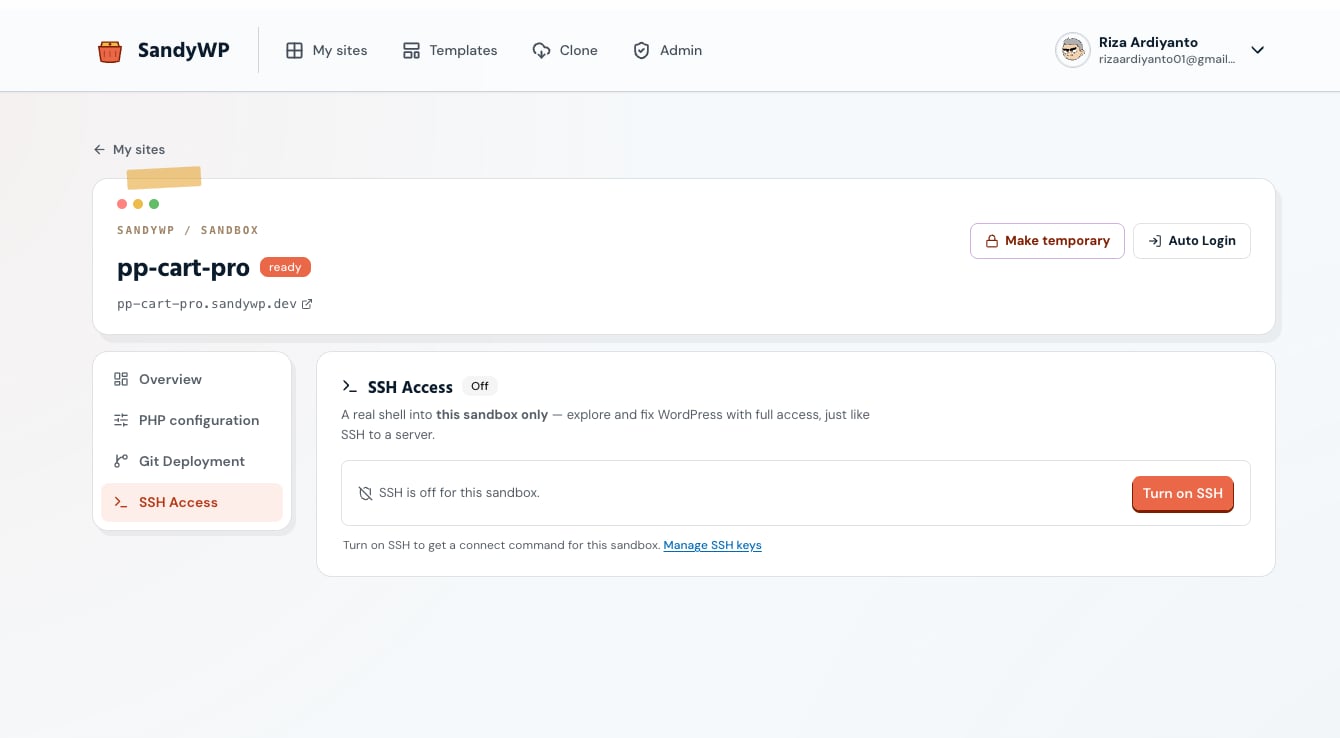
Open **Site settings** and select **SSH Access**, then turn access on for that sandbox. The panel provides the exact customer connection details, shows the host-key fingerprint for verification, and lets you manage account-level public keys.
Only add public keys to SandyWP. Keep private keys private, revoke unused keys promptly, and turn SSH off when the sandbox no longer needs it.
## Limits and safety
SSH sessions have idle, duration, concurrency, and connection-rate limits. If a session ends, reconnect and make long-running work resilient to interruption.
If the SSH panel says **Not available**, the service is not enabled for that sandbox's region yet. The File Manager remains available for browser-based file work.
Use [File Manager](/guides/file-manager) for no-client file editing, or [Database](/guides/database) for database work.
## Fastest route: the CLI
The CLI turns on access for the sandbox and handles a short-lived session credential for you.
```sh theme={null}
sandywp ssh my-site
sandywp ssh my-site --cmd "wp plugin list"
```
You need a ready, account-owned sandbox on a paid plan. The CLI requires OpenSSH; use [Mount a sandbox](/guides/mount-a-sandbox) when you want the files to appear as a local directory.
## Use the dashboard
Open **Site settings** and select **SSH Access**, then turn access on for that sandbox. The panel provides the exact customer connection details, shows the host-key fingerprint for verification, and lets you manage account-level public keys.
Only add public keys to SandyWP. Keep private keys private, revoke unused keys promptly, and turn SSH off when the sandbox no longer needs it.
## Limits and safety
SSH sessions have idle, duration, concurrency, and connection-rate limits. If a session ends, reconnect and make long-running work resilient to interruption.
If the SSH panel says **Not available**, the service is not enabled for that sandbox's region yet. The File Manager remains available for browser-based file work.
Use [File Manager](/guides/file-manager) for no-client file editing, or [Database](/guides/database) for database work.