

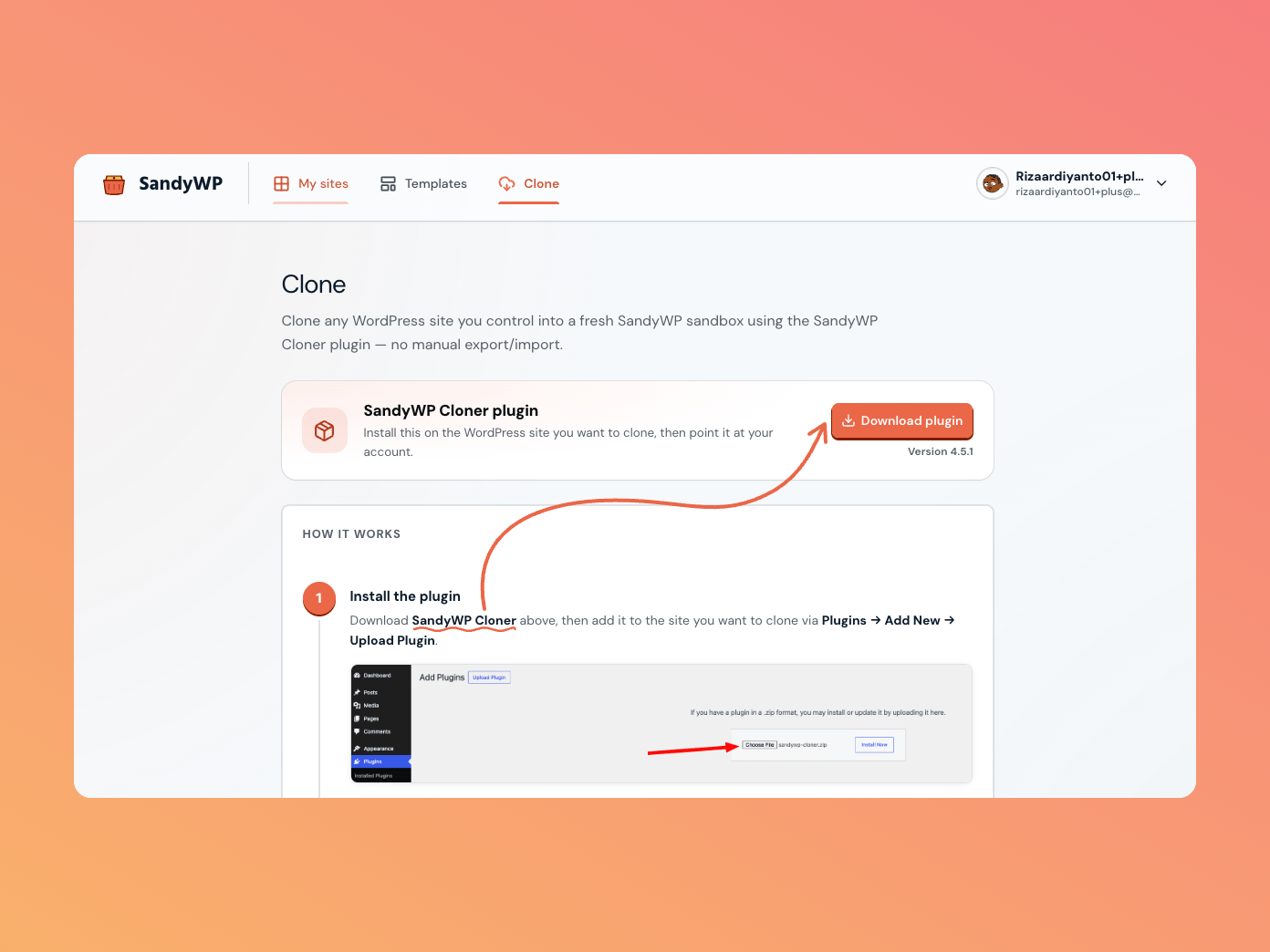
Before you start
You need a SandyWP account and administrator access to the source WordPress site. Open Clone in the SandyWP dashboard to find the plugin link and watch imports as they arrive.Clone a site
1
Install the Cloner plugin
Install and activate SandyWP Cloner on the WordPress site you want to copy.
2
Connect the account
In the source site’s WP-Admin → Tools → SandyWP Cloner, select Connect to SandyWP and approve the browser flow. An API token is available only as a fallback.
3
Start the clone
Select Clone to SandyWP. The plugin packages and uploads the site to your account.
4
Wait for restoration
Follow the import in the dashboard, then select Open site once its status is ready.
Import states
The resulting sandbox has the usual tools and lifecycle. Deleting an import history row does not delete the resulting sandbox.
Clone archives can be up to 24 GB. They count toward your active-sandbox and storage limits, and you can cancel an import while it is uploading or restoring.