

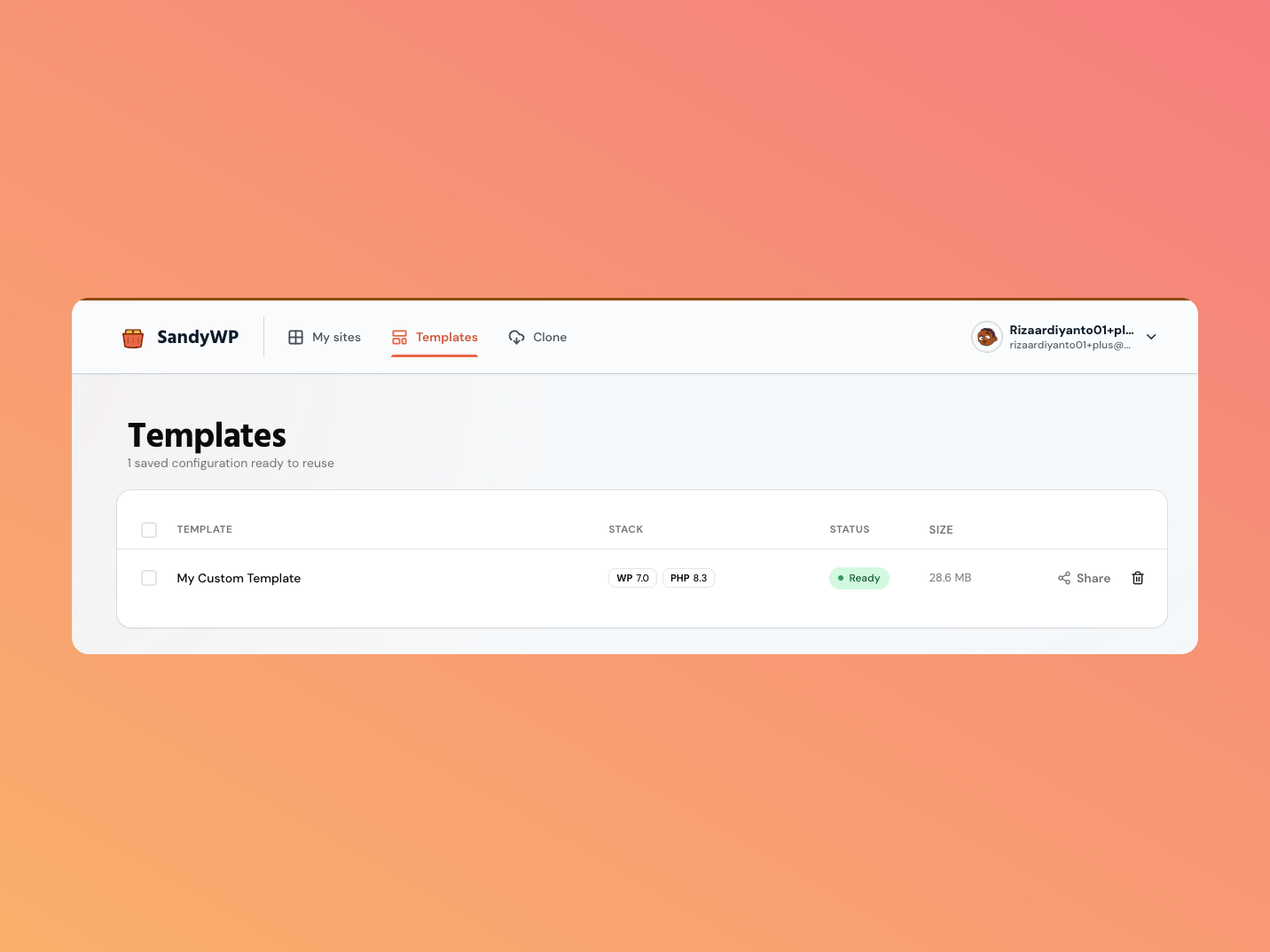
Save a sandbox as a template
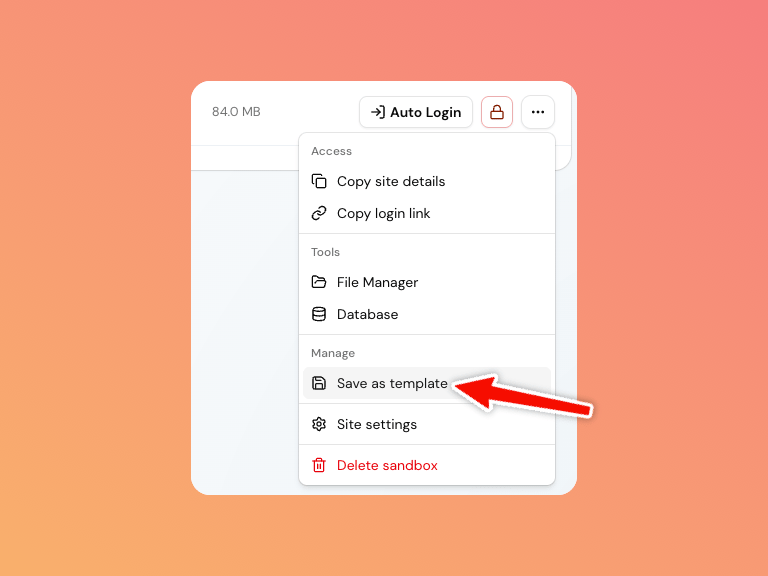
1
Choose a ready sandbox
Open its … actions menu and select Save as template.
2
Name the template
Provide a name and, optionally, a short description.
3
Wait for the snapshot
The status moves from
building to ready. The source sandbox remains available while this happens.Create a sandbox from a template
Choose a Template in the create form, select New sandbox beside a ready template, or use the action offered after saving. A template locks the new sandbox to the snapshot’s WordPress and PHP versions. Templates have their own snapshot size, while plan storage is measured against sandboxes. Delete an unwanted template from the Templates list; that removal cannot be undone.Public launch links
A ready template can offer a public launch link when the plan allows it. In Share settings, choose the sandbox-local destination visitors see after authentication, such as/, /shop/, or /wp-admin/.
Launch destinations must be relative paths beginning with
/. SandyWP does not redirect a public launch link to an external URL.Visitor consent
You can show visitors a consent checkbox with custom text before they launch a demo. Configure the checkbox on an existing launch link with the authenticated API:consentLabel is limited to 500 characters, and enabling the checkbox requires usable consent
text. consentDefaultChecked controls only the initial state; visitors can still clear the box
before launching. The setting applies to future launches from the link.
Use a Blueprint when the setup should remain editable JSON rather than a fixed snapshot.