

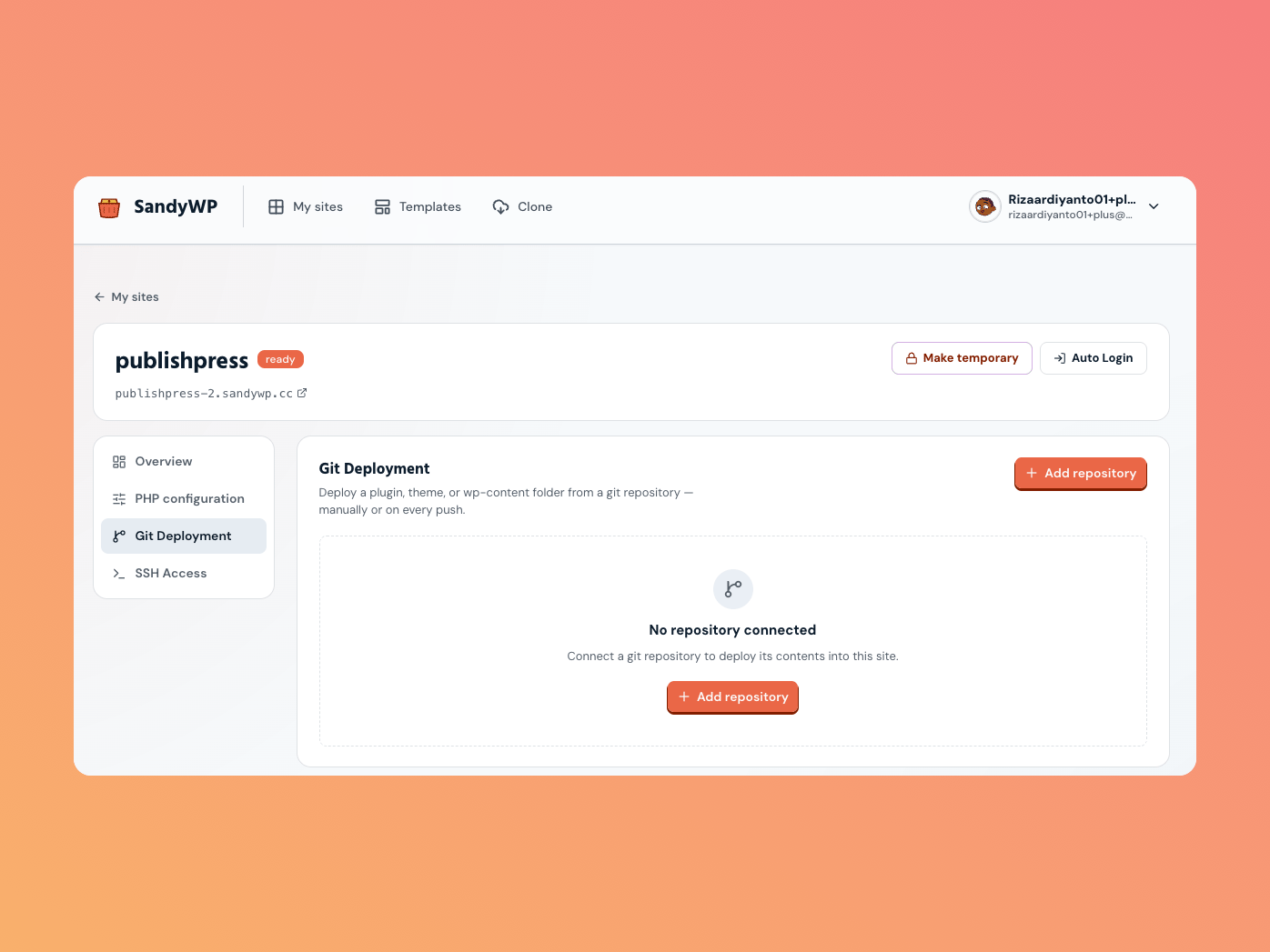
Connect a repository to deploy a plugin, theme, or wp-content folder into a sandbox. You can deploy manually or on every push to a selected branch. The Git Deployment panel on the sandbox detail page
Connect a repository

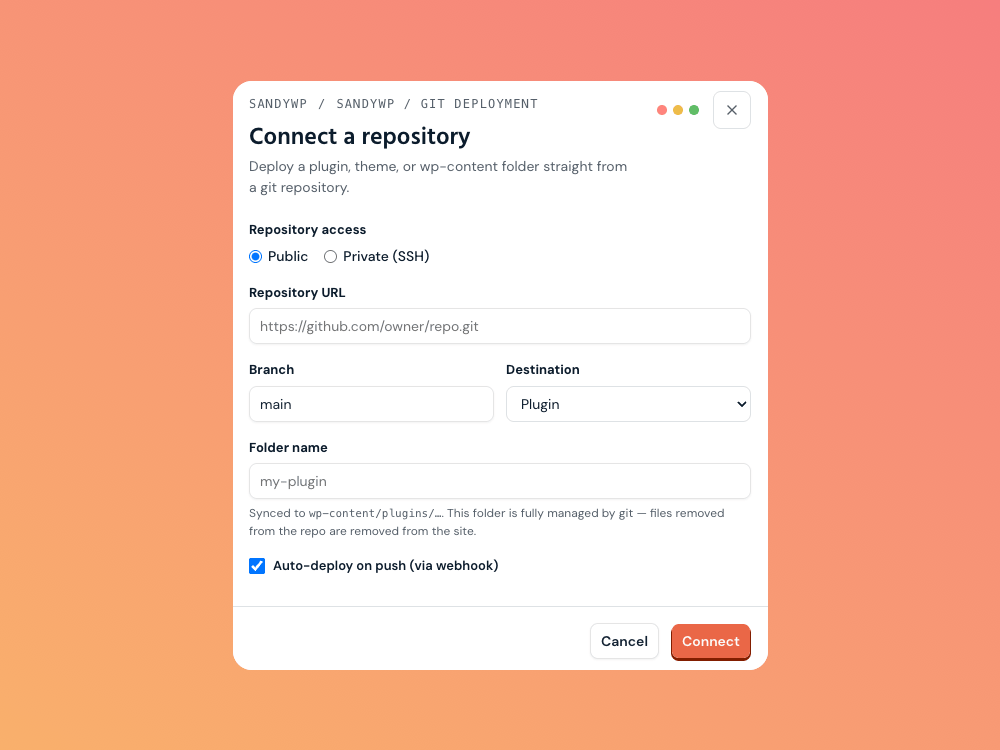
Open Site settings, select Git Deployment, and choose Add repository. The Connect repository form for Git Deployment The destination decides where files land: wp-content/plugins/<folder>, wp-content/themes/<folder>, or wp-content/<folder>. That destination folder is fully managed by Git, so files removed from the repository are removed on the next deploy.
Private repositories

SandyWP generates a read-only deploy key when you connect a private repository. Add its public key to the repository host as a deploy key, then use the connection card to copy it again when needed.

Deploy automatically or manually

For auto-deploy, add the supplied webhook URL to your repository host with JSON content and push events. Every push to the selected branch triggers a deployment. Select Deploy now to pull and sync the latest commit manually. The repository card shows the last deployed commit and deployment history. Disconnecting removes only the repository connection; files already deployed stay in the sandbox. Use GitHub PR previews for an ephemeral, exact-commit pull-request environment instead.